Category Archives: scratch

scratchClient and piFace

piFace uses MCP23S17-chip, which is supported by scratchClient.

The chip is a 16bit port expander; in piFace one group is used as an input, the other group of 8 bits are used as outputs, connected to a open collector driver.
One of the interrupt pins of the chip ‘intB’ is connected to  GPIO25. This is not used by scratchClient (but does not allow to use this pin for other purpose.

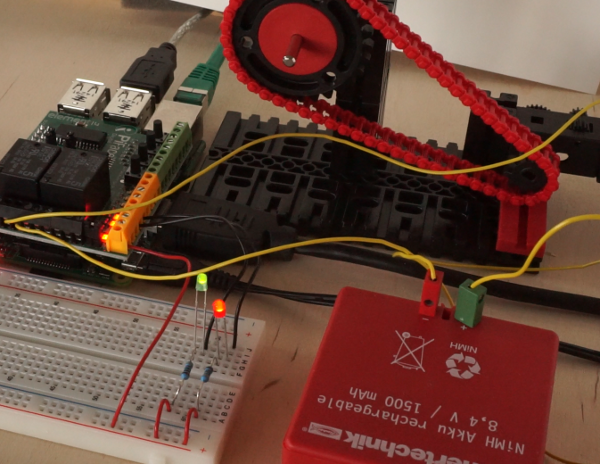
The hardware setup: two LED, a green one and red one, and a small motor powered by a battery and controlled with the relais.

hardware

This post demonstrates the use of scratchClient as a ‘hardware abstraction layer’, assigning meaningful names to scratch variables.

In this example, I connected a red and green LED to piFace.
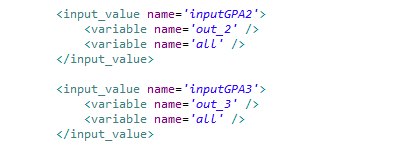
With default configuration, the default names are ‘out_2’, ‘out_3’.

config_default

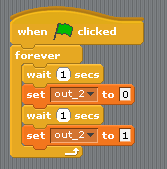
Here a sample of a blinking LED, using these definitions.

script_default

This works, but the variable names are not very conclusive. There is the need to keep a record on what this ‘out_2’ is meaning. But scratchClient allows to tweak the configuration files and provide more meaningful names for the variables controlling the hardware.

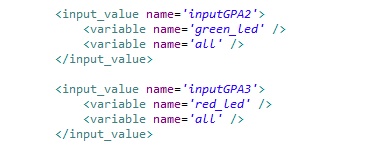
When editing scratchClient/config/config_mcp23s17.xml, the names of the variables in scratch can be changed. ‘green_led’ and ‘red_led’ are better describing what is connected to the hardware.
config_renamed

Restarting scratchClient is needed when configuration is changed.

Side topic: the ‘all’-variable, common to all outputs here, can be used to set all values immediately to either ‘0’ or ‘1’. Useful for a ’emergency shutdown’ or alike.

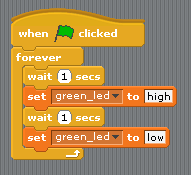
With the meaningful names, a scratch script looks like this:
script_renamed

The script gets more expressive. There is no need to map the abstract names to the thing connected.

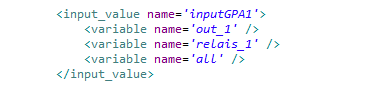
Another example. Suppose a small motor is connected to relais_1.config_relais

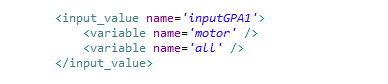
Here, the variables ‘relais_1’, ‘out_1’, ‘all’ can be used to drive this output.

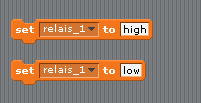
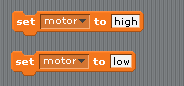
Setting this variable is straightforward, but ‘relais_1’ is not a descriptive name.

script_motor

When editing the configuration, the scratch variable names can be changed to ‘motor’.

config_motor

This changes the names in scratch to  ‘motor’.

script_motor_renamed

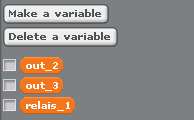
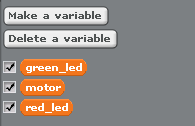
The following snippets show the changes: left side are the default definitions, right side the more meaningful names.

variables_default variables_renamed


Smartphone positional sensors connected to scratch

In a quite popular computer magazine, c’t 2015-03-07 (heise verlag), there is a nice article about how to connect a smartphone’s positional sensors to a remote server by using a web page, some javascript and websockets.

Starting from this, there was the idea to connect this to scratch (what else ?).

The basic roadmap was
– add a html-page to my scratchClient’s web server, with javascript

var addr = "ws://" + window.location.hostname + ":" + window.location.port + 
           "/pendel";
var websocket = new WebSocket( addr );
 
function handleOrientation(event) {
       var x = event.beta%90;
        var y = event.gamma;
        x += 90;
        y += 90;
          try {
                websocket.send(JSON.stringify( { x:x, y:y }));
            }
            catch(err) {
                // console.log( err.message );
            }
    }
    window.addEventListener('deviceorientation', handleOrientation);

– in scratchClient, there is cherrypy used to serve the web pages. WebSocket was a new feature to be added there.

– an adapter needed to be written adapter.websocket.WebsocketXY_Adapter, receiving the messages and converting them to scratch variable updates.

So far the plan.
Websocket implementation in sandbox environment worked well, but as I use ‘routes’ to dispatch the requests it took some time to find the correct setup.
Next finding was that the connection is really performant, and a slow movement of about a second duration provides a hundred messages flowing into scratchClient. This is far above from what scratch is able to handle.

Filtering out messages is starting in the browser. Rounding values to a tenth of a degree and sending values only on change removes quite a lot of values. After some experiments with timers in my android browser I found no viable solution to throttle update rate. Timers seem not to work in this javascript environment. Next step in filtering is in the adapter, taking most current value each 0.05sec and ignoring intermediate values.
Final step of filtering is inside scratch. When using the ‘glide’-move, scratch will ignore intermediate values. When using the ‘goto’-statement, processor load is getting much higher.

When I have seen webSocket working pretty smart, I removed the ajax-updates and webEvents from/to web browser to server. When working on the server side, some legacy code in editing values in browser was rewritten, the svg-generator is smarter now and the underlying event distribution system in scratchClient was replaced by a publish-subscribe pattern.

Installation of scratchClient now needs ‘ws4py’ in addition to cherrypy. See the docs.

Start scratchClient

cd ~/scratchClient
sudo python src/scratchClient.py -c config/config_websocket_pendel.xml -guiRemote

The guiRemote-switch is needed to allow remote browsers connecting to scratchClient.

In a smartphone browser, navigate to your pi’s address. Of course you need a (wireless) network connection between smartphone and raspberry. In my network, the RaspberryPi’s address is 192.168.2.90, most possibly different for your PI. Use ‘ifconfig’ to look it up.

http://192.168.2.90:8080

Navigate to “Smartphone as Sensor” browser

You should see rectangle with a red/green dot moving around. This is as proposed by the c’t-article.

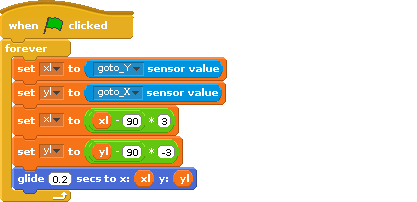
In scratch, enable remote sensor connections and provide the following script. gotoX and gotoY are sensor values provided by the scratchClient. The xl and yl-Variables are local variables in scratch.

smart

The x and y-values are getting exchanged and the y-value gets inverted to match the coordinates of the smartphone to scratch stage.

And thats it. The sprite moves close to the smartphone movements. There is some small time lag on my PI ModelB (not a pi plus so far), but sufficient good.

Atmel328 firmware for DHT22 Temperature, Humidity

The temperature, humidity sensor DHT22 is a quite inexpensive sensor, well suited for microcontroller applications. It uses same protocol as DHT11.
It is connected by a single wire, needs 5ms for a read cycle, but a quite challenging protocol where the pulse width gives ‘0’ or ‘1’ bit values.

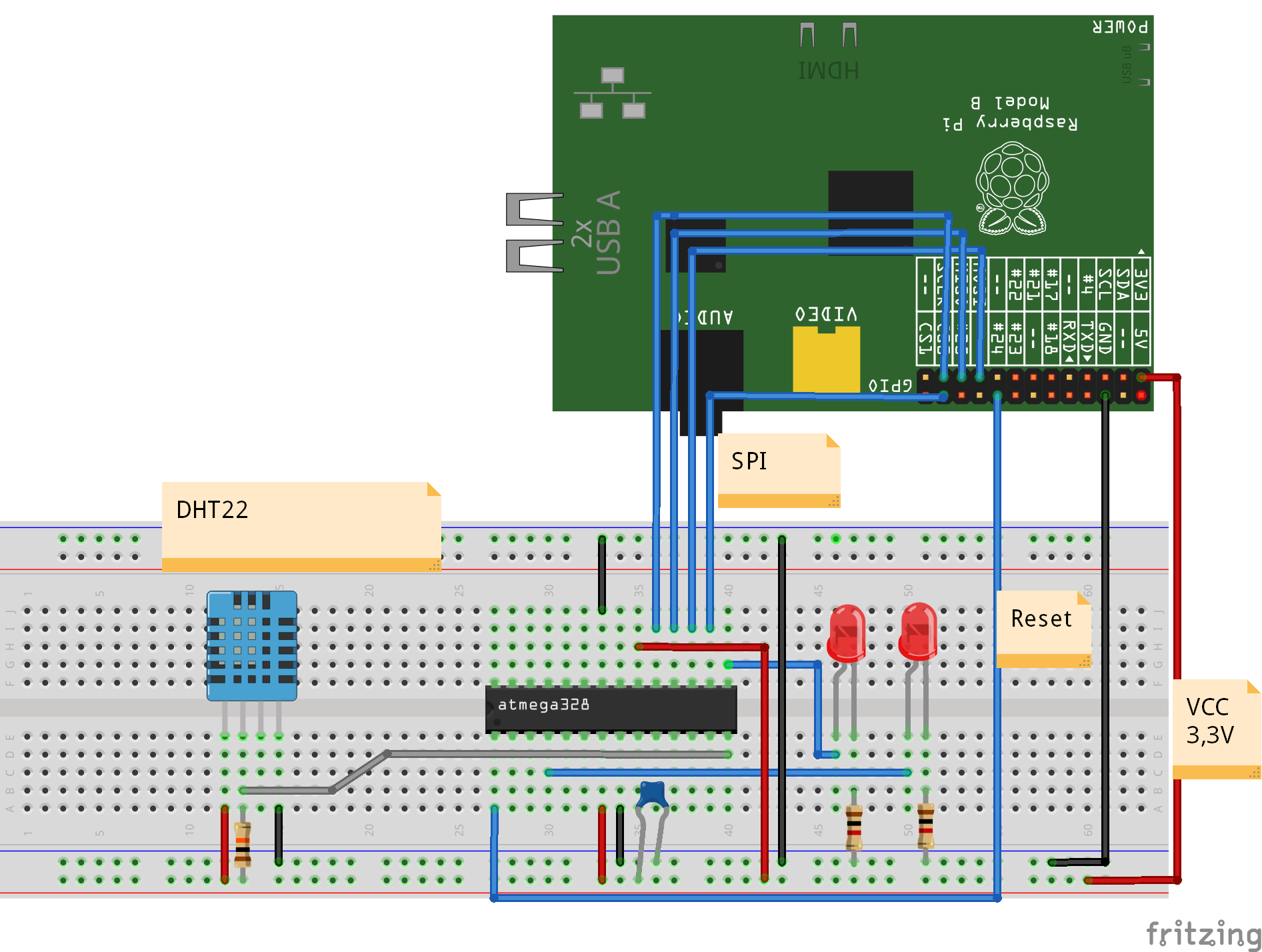
This is a typical application for a coprocessor for raspberrypi. For an atmel328, it is not a challenge to handle this protocol.

atmel_dht22_Steckplatine

The signal from this sensor is relying on exact timing.

dht22_waveform

The initial ‘pulse low’ is not in the chart.

The firmware uses internal timer with 1 us resolution to measure pulse widths. Using the timer unit makes this method insensitive when interrupts produced by SPI communication occur in parallel.

The atmel firmware triggers the data aquisition, and provides a 40bit ‘raw’ result to the raspberry pi host computer. The conversion of the values  to temperature, humidity values is performed in python code. See the sample code provided in the download to see this procedure.

Of course, there is an adapter for scratch.
cd ~/scratchClient
sudo python src/scratchClient.py -c config/config_dht22_atmel328.xml

A detailed description on how to program the firmware is on the download page.

Barcode scanner for scratch

barcode

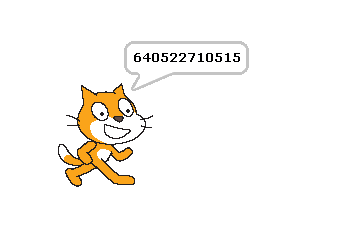
Connecting a barcode scanner to scratch

Some time ago I aquired a barcode scanner, which I use to manage a CD collection based on the EAN-code printed on the packages.

These scanners typically can send codes by emulating HID-class devices. This makes usage from programs quite easy, but you loose input when the program goes to background and other programs get the focus.

Currently I try to bring this code to raspberry pi, using python and pyusb library. This library allows access to usb devices and, very important, can grab devices to be used exclusively by one program. As a side result from this work, I added a barcode scanner adapter to scratchClient.

Install pyusb

Here I found a problem. The usual install did not workwith „pip install pyusb“. This resulted in a ‘backend not found’ exception and „undefined symbol: libusb_strerror“
When I tried to download walac-pyusb-50b1490 from https://github.com/walac/pyusb, this worked, but I had to uninstall the pip-installed code first „sudo pip uninstall pyusb“.

The needed backend packages are already available in raspbian, you can check this with

apt-cache pkgnames | grep libusb

You should find libusb-1.0-0 in the list.

Setup Scanner for USB and CR-suffix

A few preparations are needed with the scanner to enable HID mode. With my scanner I got a handbook with a huge amount of programming codes. You start programming with a ‘start programming’ code, scan the appropriate setup code and exit programming with an ‘end programming’ code.

For my sample, I have setup HID mode, and added exit code/suffix CR. This is needed to detect complete sequences. The adapter in scratchClient relies on this.

Configure idVendor and idProduct

Another preparation is the configuration of idVendor and idProduct in the adapter’s config file. Use the utility enum.py to list the devices available

cd ~/scratchClient
python tools/usb/enum.py

Here the output for my scanner

DEVICE ID 0c2e:0200 on Bus 001 Address 007 =================
bLength : 0x12 (18 bytes)
bDescriptorType : 0x1 Device
bcdUSB : 0x110 USB 1.1
bDeviceClass : 0x0 Specified at interface
bDeviceSubClass : 0x0
bDeviceProtocol : 0x0
bMaxPacketSize0 : 0x8 (8 bytes)
idVendor : 0x0c2e
idProduct : 0x0200
bcdDevice : 0x5881 Device 88.81
iManufacturer : 0x1 Honeywell Scanning and Mobility
iProduct : 0x2 Honeywell Scanning and Mobility Scanner
iSerialNumber : 0x0
bNumConfigurations : 0x1
CONFIGURATION 1: 300 mA==================================
bLength : 0x9 (9 bytes)
bDescriptorType : 0x2 Configuration
wTotalLength : 0x22 (34 bytes)
bNumInterfaces : 0x1
bConfigurationValue : 0x1
iConfiguration : 0x3 HID Keyboard
bmAttributes : 0x80 Bus Powered
bMaxPower : 0x96 (300 mA)
INTERFACE 0: Human Interface Device ====================
bLength : 0x9 (9 bytes)
bDescriptorType : 0x4 Interface
bInterfaceNumber : 0x0
bAlternateSetting : 0x0
bNumEndpoints : 0x1
bInterfaceClass : 0x3 Human Interface Device
bInterfaceSubClass : 0x1
bInterfaceProtocol : 0x1
iInterface : 0x0
ENDPOINT 0x81: Interrupt IN ==========================
bLength : 0x7 (7 bytes)
bDescriptorType : 0x5 Endpoint
bEndpointAddress : 0x81 IN
bmAttributes : 0x3 Interrupt
wMaxPacketSize : 0x8 (8 bytes)
bInterval : 0xa

What you also should check is the iConfiguration to be a HID Keyboard.

For verification open a text editor like leafpad: when scanning a code, this should be entered into the editor as a text string.

Edit config/config_barcode.xml and adjust the vendor/product id there.

In my environment, I use a powered USB hub to connect the scanner.

Start scratchClient

cd ~/scratchClient
sudo python src/scratchClient.py -c config_barcode

The file config/config_barcode.xml is a starting point for a project. Add other adapters as needed.
When scanning barcodes, these are send to scratch. Do not forget to enable remote sensor connections.

scratch_barcode

raspbian 2014-12-24

Pünktlich zu Weihnachten 2014 hat die pi-Foundation einen Update der Oberfläche veröffentlicht.

Die sichtbarste Änderung ist das neue Layout des Desktop mit der Menüleiste am oberen Rand. Ebenfalls auffällig ist, dass es keine desktop-Icons mehr gibt.
Über die Menüleiste am oberen Rand wurde im Forum der pi-Webseite bereits heftig diskutiert.
Da die Bildschirme in letzter Zeit immer mehr in die Breite gehen, ist mir es lieber die Menüleiste am linken Rand zu haben.

Die neue, überarbeitete Version von scratch ‘nuscratch’ ist ebenfalls enthalten. Für den Schulkurs erst mal eine gute Nachricht, da diese Version deutlich schneller ist.
Leider gab es bei der Integration in das System noch einige Probleme. Die Dateiverzeichnisse waren nicht vorhanden, die Hilfetexte funktionierten nicht und auch ein Aufruf aus dem Browser (über einen Link) funktionierte nicht.
Mit

sudo apt-get update
sudo apt-get install nuscratch

kann das jetzt behoben werden. In zukünftigen Versionen ist dann wahrscheinlich gleich richtig.

Diese neuen Versionen von Scratch wurden von mir gründlich getestet. Das Verhalten ist gleich wie die ursprüngliche Version, auch die Anbindung an scratchClient funktioniert korrekt.

Die Tutorials für die Schüler wurden zum Schuljahr H2/2015 angepasst, um die neue Oberfläche zu zeigen. Das Kapitel über die Desktopumschaltung ist deshalb entallen, da es den Umschaltknopf nicht mehr in der Voreinstellung gibt.

Weihnachtskarten mit scratch

Mit scratch kann man  animierte Postkarten machen und Freunden und Bekannten einen Link auf die scratch-webseite mit dem Projekt schicken.

Dann braucht man nur noch auf den Link clicken und die eigene Idee erscheint im Browser.
Hier ist eine Anleitung, wie man das machen kann.

Schritt 1: Erst mal schauen wie man so was macht.

Beispiele ansehen

http://scratch.mit.edu/projects/11806234/
http://scratch.mit.edu/projects/14971587

Schritt 2: bei scratch anmelden

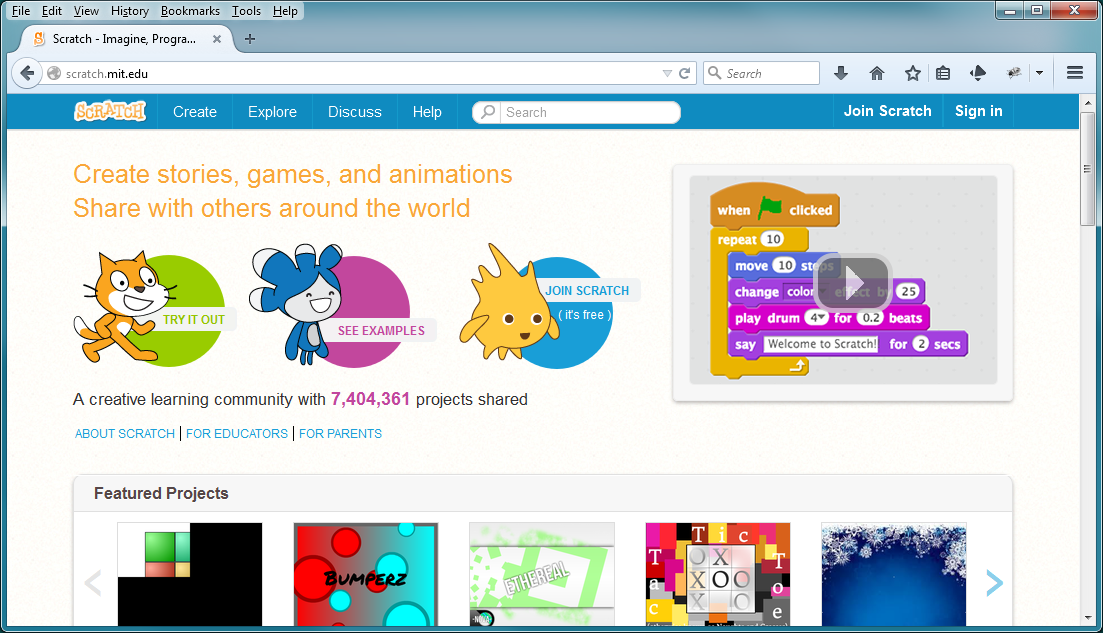
Im Browser scratch.mit.edu aufrufen.
karte_10

„Join scratch“ drücken

username ausdenken (nicht den echten Namen, auf KEINEN Fall).
passwort ausdenken und merken. Oder aufschreiben.

Schritt 3: Projekt erstellen

Bevorzugt auf scratch 1.4, ladbar über http://scratch.mit.edu/scratch_1.4/
Oder auch über die web-Oberfläche.

Speichern

Bitte denkt daran, dass das Projekt nachher von der ganzen Welt gesehen werden kann. Also keine echten Namen, Bilder o.ä. verwenden.

Schritt 5: Projekt teilen

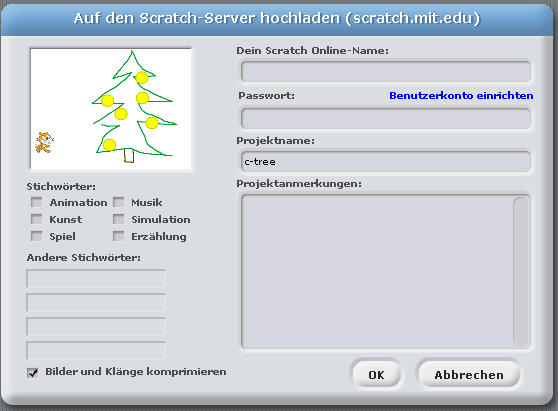
In scratch 1.4 auf ‘Veröffentlichen!’ drücken und ‘Dieses Projekt im Internet veröffentlichen.’ auswählen.
karte_20

Den online Namen von vorher angeben und das Passwort.

Schritt 6: Projekt Link suchen

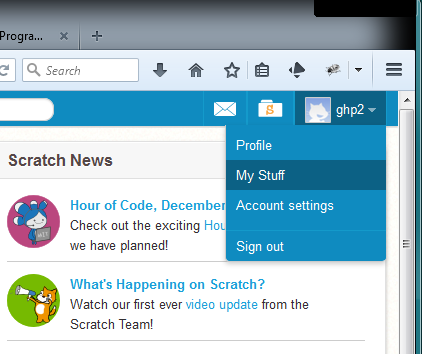
Auf scratch.mit.edu einloggen. Rechts oben erscheint der Name, ‘My Stuff’ anwählen. karte_30
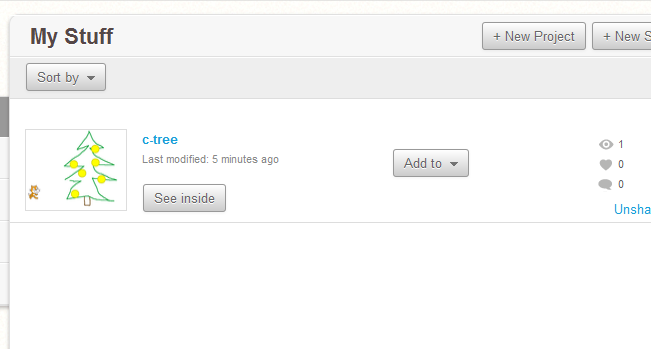
Dann bekommt man eine Ansicht der eigenen Projekte.

karte_40

Das Projekt anclicken, das Bild links. Man erhält die Projektansicht.

karte_50

Und so sieht das Ergebnis für das Beispielprojekt aus:
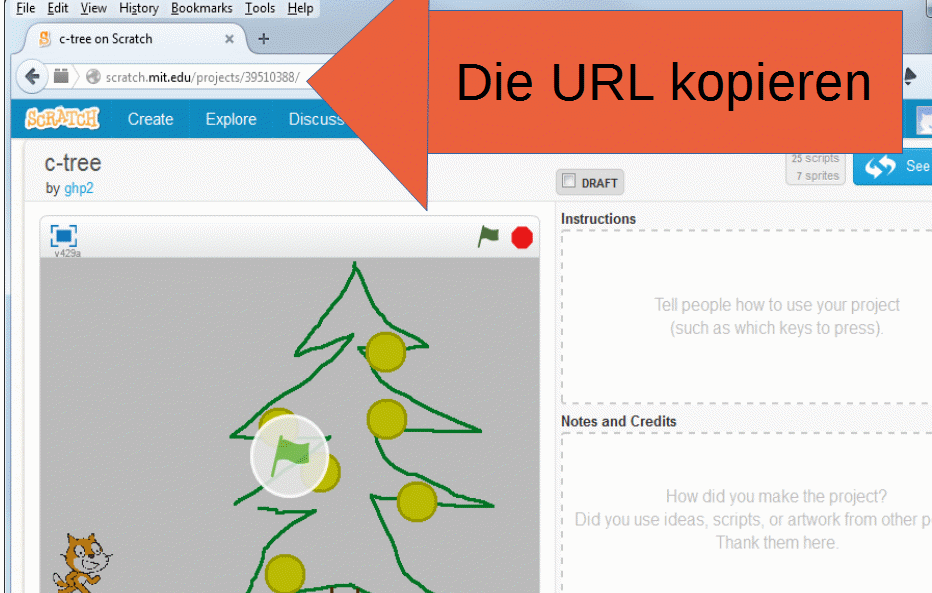
http://scratch.mit.edu/projects/39510388/

Eure URL für euer Projekt hat dann natürlich eine andere Projektnummer.

Die URL für das Projekt dann an Freunde und Bekannte schicken. Per email. Oder so.

Schritt 9999: Jemand erhält die email und will sich das ansehen.

Die URL mit dem Browser öffnen. Dann im Browser mit der grünen Flagge starten.

Der Browser muss Flash erlauben, das ist ein Plugin, das für die meisten Umgebungen verfügbar ist.

Was auch noch geht

Den Link auf das Projekt als QR-Code aufbereiten. Da gibt es im Internet einige Seiten, wo man das machen kann. Aber Vorsicht hier: es gibt einige Seiten die eine Registrierung verlangen oder sogar Geld verlangen. Benutzt nur Seiten, die keine Registrierung erfordern und wo man das Bild direkt herunterladen kann.

qr_code_without_logo

scratch performance antipattern

In a workshop in a school, the kidsare building a computer game and to control it by a hand made ‘controller’. Most teams have 2 potentiometer and buttons build in a box, and the adapter board plus python scratchClient is sending the values to scratch. In most games, the xPoti and yPoti control some sprite on the screen.

When the applications grow, most teams complain that the computer is too slow. I admit, a raspberry pi is no supercomputer-high-performant unit. But in most cases there are typical patterns of code to be avoided. These are the ‘performance antipatten’.

See here some of these pattern, and possible workarounds.

forever-move-pattern

Most teams implement movement patterns the following way.
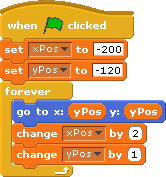
forever-move-pattern

The problem with this script is that it consumes a lot of CPU power. When more than one sprite is moved this way, then all the sprites get slow.

First improvement is to use a small delay in the loop.
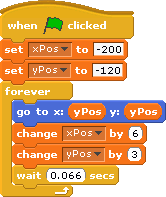
forever-move-pattern-2

Now the script makes short pauses and CPU is free to perform other action. The drawback is that the steps need to be larger and movement is not perfectly steady.

Next improvement is to use the ‘glide’-statement instead.
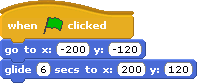
forever-move-pattern-3

This is – for this purpose – the perfect solution. CPU -efficient and smooth. The only problem is that this movement can’t be stopped.

always-move-pattern

We use sensor values, here adcValueX and adcValueY to control sprites on stage.
The following loop is quite a challenge for the Raspberry Pi.

repeat forever
    x = adcValueX / 2.2 - 240
    y = adcValueY   / 2.8 - 180
    move object to (x, y)

The scaling is not the problem, but small fluctuations in the sensor values cause the sprite to move, using CPU for almost not visible movements.

There is some noise limiting in the scratchClient for the adc channels, but even with stable input values this nice and innocent looking loop is a performance eater.

When changing the code to a ‘move only when changes occur’, the CPU load is much lower.

local.adcValuePrevX = -1
local.adcValuePrevY = -1
local.x
local.y
repeat forever
    if abs( adcValuePrevX - adcValueX ) > 4 OR  abs( adcValuePrevY - adcValueY ) > 4
        x = adcValueX / 2.2 - 240
        y = adcValueY   / 2.8 - 180 
        move object to (x, y)
        adcValuePrevX = adcX
        adcValuePrevY = adcY

With this script, given in pseudocode, the sprite is moved only when noticeable movements are needed. Perhaps a small wait-time would even give better results.

variable-on-stage-pattern

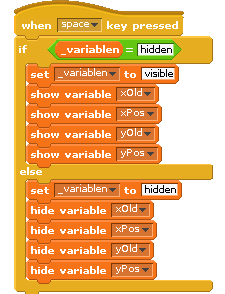
Variables on stage are consuming astonishing much CPU. Moving a sprite is fast, when no variables are displayed. When variables are on stage, CPU usage increases to 100%.
When variables need to be displayed for debug purpose, then provide a script which hides/displays them.
script2

Note on this pattern: with scratch 2015-01-15, the performance of watchers on stage is much better.

loop-pattern

In almost all projects the kids developed I found the pattern: loops to make decisions.

The example here is a counter value, visualized on stage by some red bubbles. The bubble implement a loop, basically ‘when counter > 3 then show, else hide. This check is performed in a loop. For this example, this needs nine loops, running all the time.
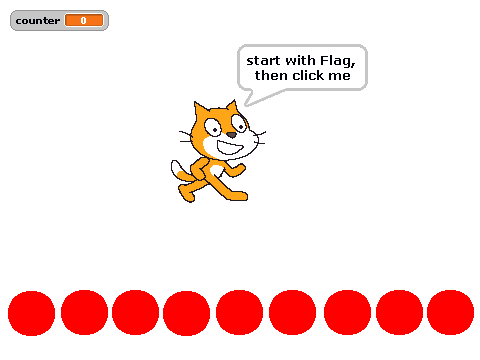
loop-pattern-stage

For the ‘red bubbles’. the kids start with looping solutions.
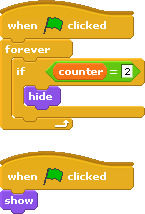
loop-pattern-stage

These small loops cost about 5% CPU load each, for the above example this is quite expensive.

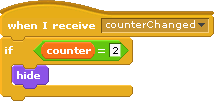
The better approach is to go for an event driven solution. When changing the variabls, an event is send. The ‘bubble’-sprites react on these events. The loops no longer needed.
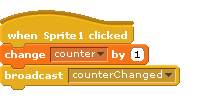
event-pattern_sendSender side.

event-pattern-receiveReceiver side.

The difference in CPU load on a Raspberry Pi B is 80% for the loops and 35% for the event driven solution.

The samples are downloadable here:
loop-pattern-0.sb (with loops)
loop-pattern-1.sb (with events)

loop_when_needed

Loops can not always be avoided. But when needed, these loops should be shut down when not needed in order to reduce CPU load. Here first the CPU consuming pattern, two loops started at Green Flag, running forever.
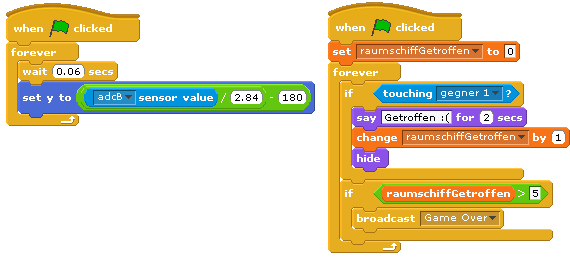
loop_when_needed_antipattern

These loops have been needed for the application, so the only way is to start them only when needed and stop them when this part of the application no longer is used.

The blue boxes show the changes. When a certain situation needs these loop (here when ‘3 Spiel’ is started), the scripts set a local variable ‘move’ to ‘true’. This is done in each script, as there is no guarantee in which order these scripts are started (left first, then the right one; but could also be other way round). The move variable is sprite-local, because then the same name can be used in every sprite for this purpose, making it easier to understand.
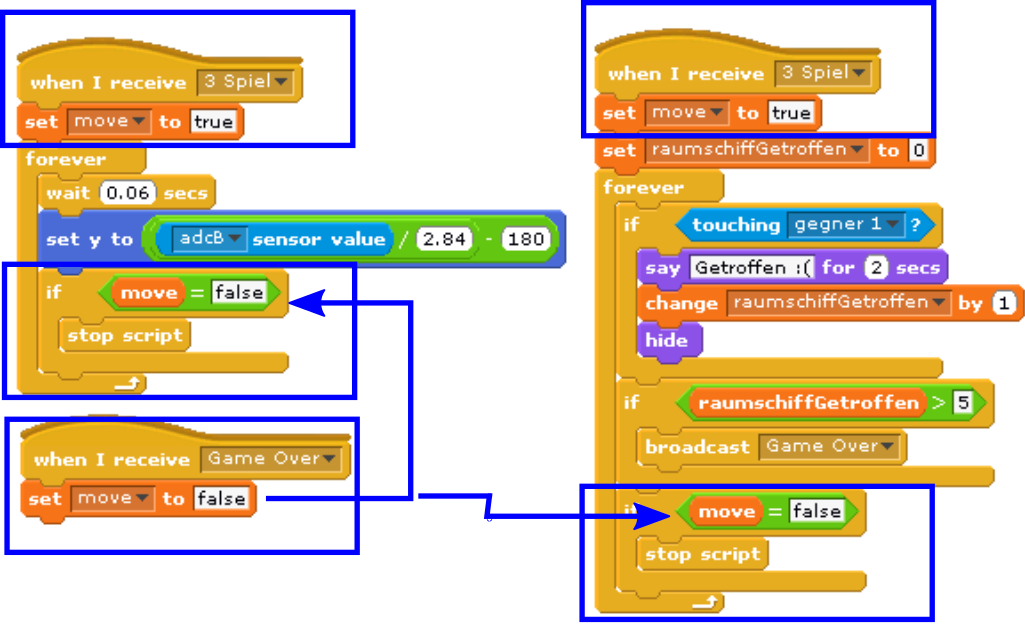
loop_when_needed

Inside the loop, there is a check whether this variable is set to false, and then the loop is terminated.
The ‘Game Over’ signal sets the ‘move’ variable to false. Then the loops are stopped.

This pattern needs a good understanding of when scripts need to be executed and when to be stopped.